

There is a particular kind of panic that only a lost phone can produce. One minute you are taking photos at a family dinner, and the next the screen is cracked, the phone will not turn on, and years of pictures, contacts, and messages feel gone for good. The same feeling hits when a laptop refuses to boot the week before an important deadline. If you know how to back up your phone and computer properly, that panic mostly disappears — not because devices stop breaking, but because breaking no longer means losing everything.
A backup is simply a second copy of your important stuff, kept somewhere safe. That is all. You do not need to understand servers, buy expensive software, or spend a weekend on it. This guide walks through a setup that takes about half an hour, then mostly looks after itself. By the end, your photos, documents, and contacts will have somewhere safe to go, even if your device does not survive the week.
Why Backups Matter More Than New Devices
We spend a lot of money on phones and laptops, and almost nothing protecting what is on them — which is backwards, because the device is replaceable and the contents usually are not. A phone can be bought again. The photos of your child’s first steps, the notes from a course you finished, or a small business’s invoices cannot. People often realise this only after the loss, when a repair shop tells them recovery will cost hundreds and still might not work.
Loss does not only come from drops and spills. Phones get stolen, laptops get viruses, and updates occasionally go wrong. A friend of mine once lost a whole semester’s work because his laptop was stolen from a café table while he went to order coffee — two minutes, and everything was gone, because he had never turned backup on. Turning it on would have taken ten minutes. Backups are boring, unglamorous insurance, and like all insurance, you only appreciate them on the day you need them.
What Should You Actually Back Up?
Before you back up your phone, decide what matters. For most people, the list is shorter than they fear. On a phone, it is photos and videos, contacts, messages, and app data like notes. On a computer, it is documents, work files, study material, and the photo folder — not the whole system, and certainly not every downloaded file you will never open again.
A quick way to sort it out: ask what you would be upset to lose, and what would be annoying but survivable. Losing a music playlist is annoying; you can rebuild it. Losing the only copy of your wedding photos is not something you rebuild. Start with the first group. If you back up photos, documents, and contacts, you have covered the things that actually hurt to lose, and you can add more later.
How to Back Up Your Phone, Step by Step
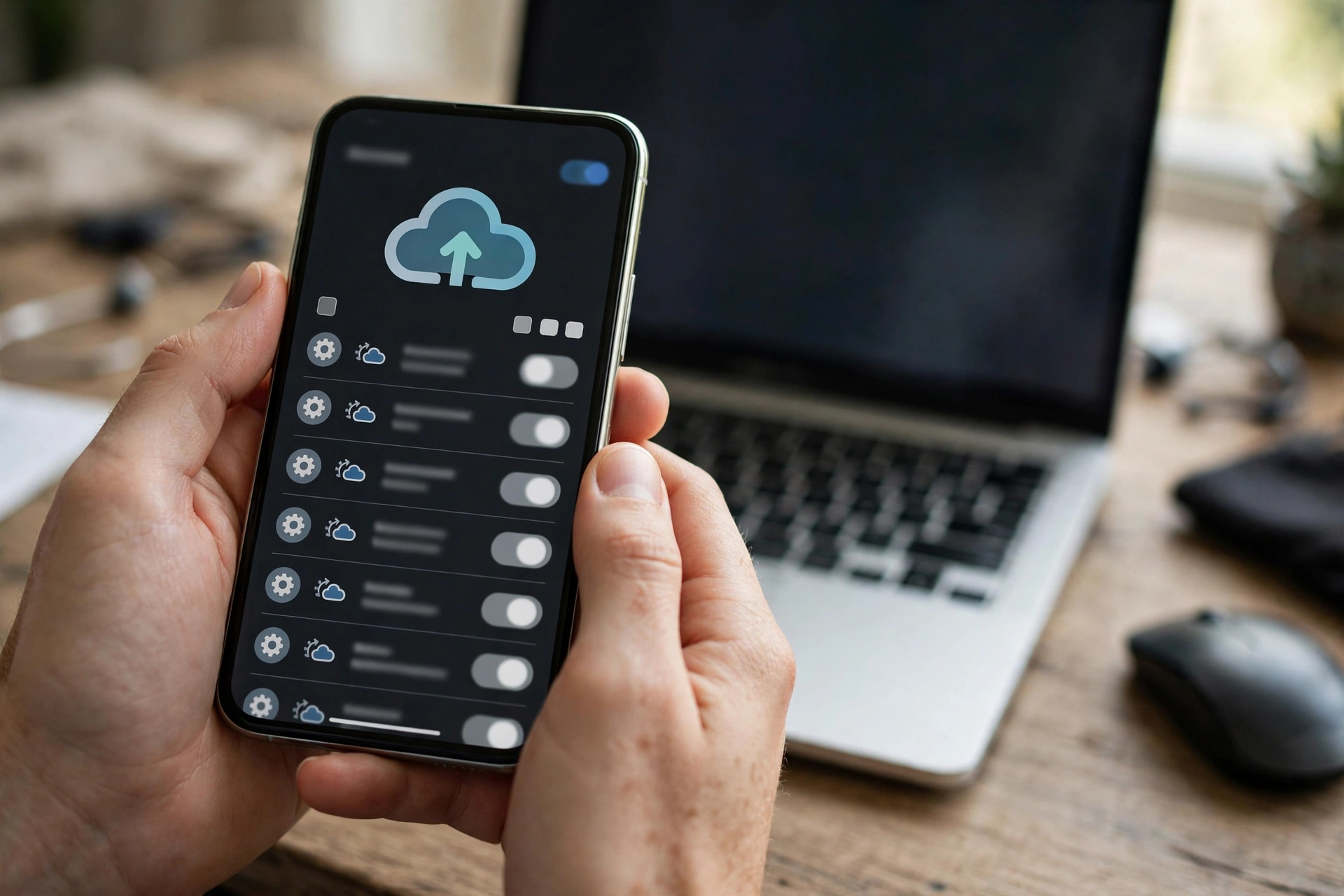
Learning how to back up your phone is easier than most people expect, because both Android and iPhone already include the tools — they just need switching on. On an iPhone, go to Settings, tap your name at the top, then iCloud, then iCloud Backup, and switch it on. Plug the phone in, connect to Wi-Fi, and it will back up on its own, usually overnight. Check that Photos is also switched on under iCloud, so your pictures are included, not just settings.
On Android, open Settings, then Google, then Backup, and switch on Backup by Google One. This covers apps, call history, contacts, and device settings. Then open Google Photos, go to its settings, and switch on backup for photos and videos — this is the part people most often miss, because device backup and photo backup are two separate switches. Once both are on, your phone will back up whenever it is charging and on Wi-Fi, which for most people means every night without thinking about it.
Two details matter here. First, check your storage. Free cloud accounts include only a limited amount of space, and a phone full of videos can fill it quickly. If you run out, either pay a small monthly amount for more space, or back up photos to a computer or external drive as well. Second, use a strong password for the account holding your backup, and switch on two-factor authentication. A backup protected by a weak password is barely a backup at all — our strong password guide explains how to make one you can actually remember.
How to Back Up Your Computer Without the Fuss
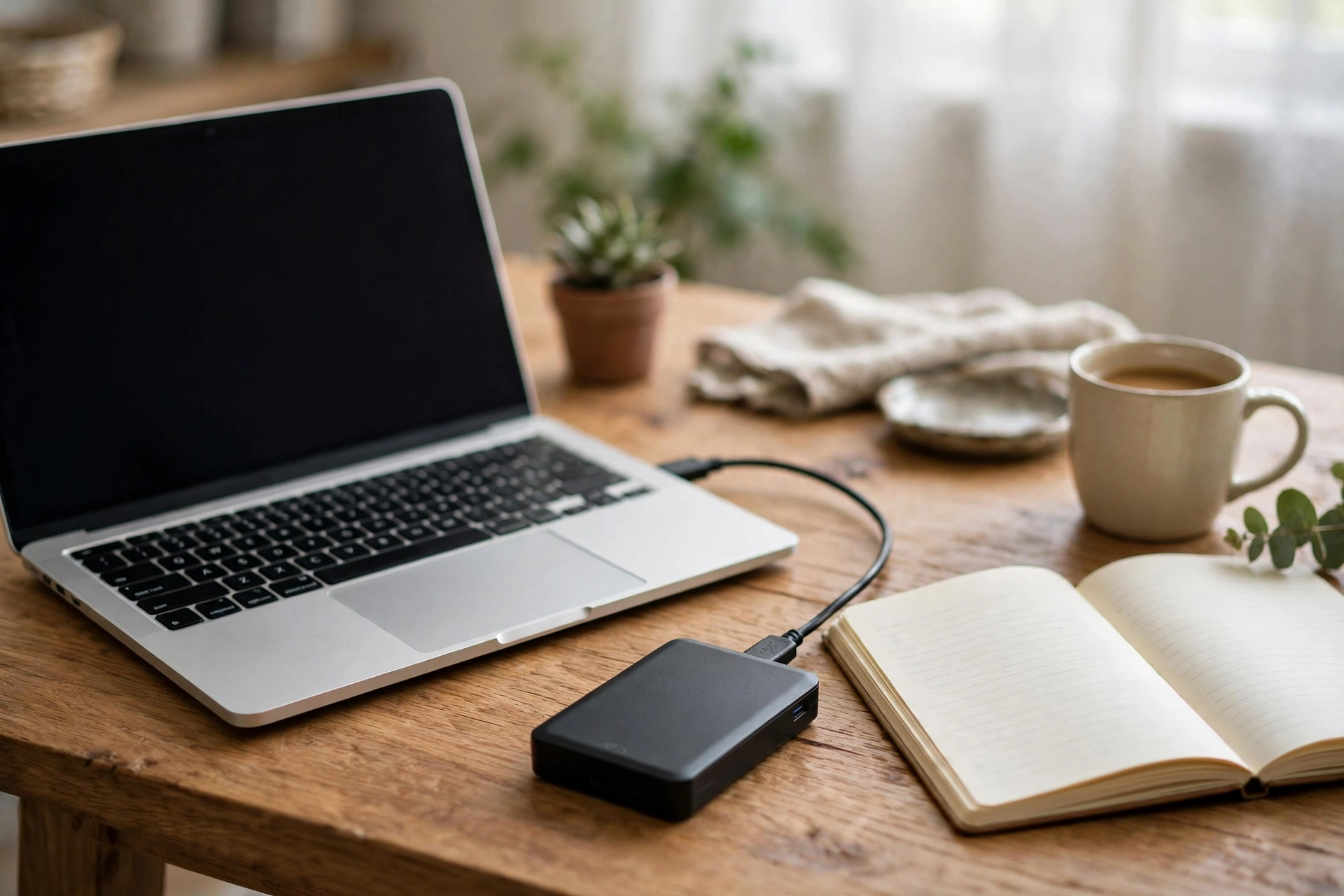
Computers are only slightly more work, and the simplest method is an external hard drive: a small box, roughly the size of a phone, that plugs in with a cable and holds far more than most people need. A one-terabyte drive costs less than a night out in many places, and it will hold years of documents and photos.
On Windows, plug the drive in, open Settings, then System, then Storage, and set up File History — or search for “Backup” in Settings and follow the Windows Backup steps. Point it at your external drive, choose the folders that matter, and let it run. On a Mac, plug the drive in and open Time Machine from System Settings; the Mac will ask if you want to use the drive for backups, and from then on it will copy your files quietly in the background. In both cases, the first backup takes a while, because it is copying everything. After that, it only copies what changed, which takes minutes.
Cloud backup is the other half of the picture. Services like Google Drive, OneDrive, and iCloud let you keep a copy of your important folders online, so even if your laptop and drive are stolen together, your files survive somewhere else. You do not need to back up everything to the cloud — just the “Important” folder you made earlier, and your photos. An external drive at home plus a cloud copy elsewhere is the sweet spot for most people: fast, cheap, and hard to lose both copies at once.
The Step Everyone Skips: Test Your Restore
A backup you have never tested is a hope, not a guarantee. Testing takes two minutes. To test how you back up your phone, open your cloud account on another device or in a web browser and check that a recent photo is actually there. On your computer, open your external drive and open one document from it, just to confirm the files are readable.
If you ever get a new phone after you back up your phone, the restore test happens naturally: during setup, choose to restore from your backup, and watch your photos, contacts, and apps return. It is genuinely satisfying the first time it works, and it proves the system is real. Do this check once, and you will trust your backup from then on — and spot problems while there is still time to fix them, not after a loss.
Mistakes That Leave People Unprotected
A few traps are worth naming. First, assuming your photos are backed up because you can see them in an app. Some apps show photos stored only on the device, and deleting the app or losing the phone deletes them. When you back up your phone, always check the backup switch itself, not just the gallery.
Second, backing up to a drive and then leaving that drive plugged in forever, next to the computer. If the computer is stolen, the drive goes with it; if there is a power surge, both can be damaged. Keep the drive in a drawer when it is not backing up.
Frequently Asked Questions
Do I need to pay for backup?
Not necessarily. Free cloud storage covers most people’s photos and documents if they tidy up occasionally, and a single external drive is a one-time purchase. Paying only becomes sensible when your photo library grows beyond the free limit — and even then, the cheapest paid tier is usually enough.
How often should backups run?
Automatically, whenever possible — daily when you back up your phone, and every hour or every day for computers, depending on the tool. If you must do it manually, once a week is a reasonable minimum for active work, and once a month for photos that rarely change.
Is cloud backup safe and private?
Reputable cloud services encrypt your files and protect them with your account password, which is why a strong password and two-factor authentication matter so much. Nothing online is perfectly private, but for everyday photos and documents, a well-protected cloud account is far safer than a single phone that can be lost or stolen.
What if I lose my phone and my backup password?
This is why recovery details matter. Set a recovery email you still use and a phone number you can access, and consider writing your backup password down somewhere safe at home — not on the phone itself. With recovery set up, most services let you regain access within minutes.
Final Thoughts: Back Up Your Phone and Computer
To back up your phone and computer well, you do not need to become a technical person. You need three things: automatic backup switched on for your phone, a copy of your computer’s important files on a drive or in the cloud, and one quick check that the restore actually works. Set it up once, glance at it monthly, and then forget about it — that is the whole system, and it is enough.
Start tonight, while your phone charges. Back up your phone, plug in a drive for your computer tomorrow, and give yourself the quiet comfort of knowing that the next cracked screen or stolen laptop will be an annoyance, not a disaster. Future you, staring at a blank new phone that is about to refill itself with everything that mattered, will be very glad you did.