
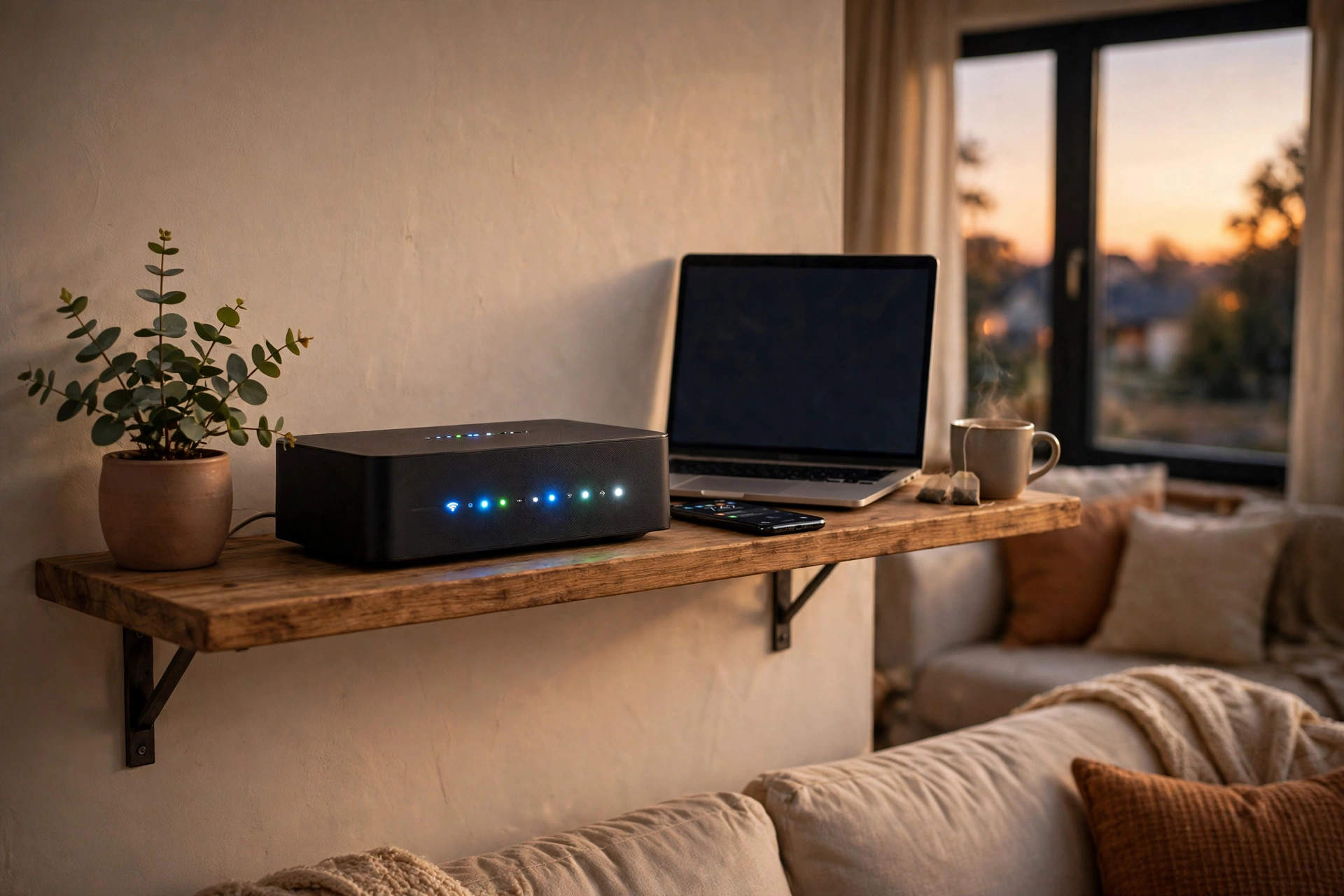
You pay for a decent internet plan, yet the video still buffers, the call still freezes, and the page still spins. Before you blame your internet provider or buy a new router, know this: in most homes, the problem is not the connection coming into the house. It is what happens to the signal after it gets there. This guide shows how to fix slow Wi-Fi at home, step by step.
The good news: you can usually fix slow Wi-Fi yourself, for free, in under half an hour. Work from the top down and stop as soon as things feel fast again.
First, Find Out Where the Problem Actually Is
It helps to know whether your internet is slow, or just your Wi-Fi. Plug a laptop directly into the router with an ethernet cable, if you have one, and run a speed test. Then run the same test on Wi-Fi, standing next to the router, and again from the room where you usually have trouble.
If the wired test is fast but the Wi-Fi test is slow, the problem is inside your home, and this guide will fix it. If even the wired test is slow, the issue is with your plan or your provider, and no amount of router-moving will help — skip to the last section.
Also test at different times: fine at midnight but crawling at 8 in the evening points to a crowded channel, not a broken router.
1. Restart Your Router — Properly
Yes, everyone says this, and yes, it genuinely works. Routers are small computers, and like any computer, they get sluggish when they run for weeks without a break. Memory fills up, minor errors pile on, and a tired router hands out slower speeds to everyone.
But a quick off-and-on from the power button is often not enough. Do it this way instead: unplug the router from the wall, wait a full 30 seconds, then plug it back in and give it two or three minutes to fully start up. That pause matters, because it lets the router clear its memory completely and pick a less crowded channel when it comes back.
Do this once a week to fix slow Wi-Fi, or whenever things feel sluggish. A cheap plug timer that restarts the router at night does the same job automatically.
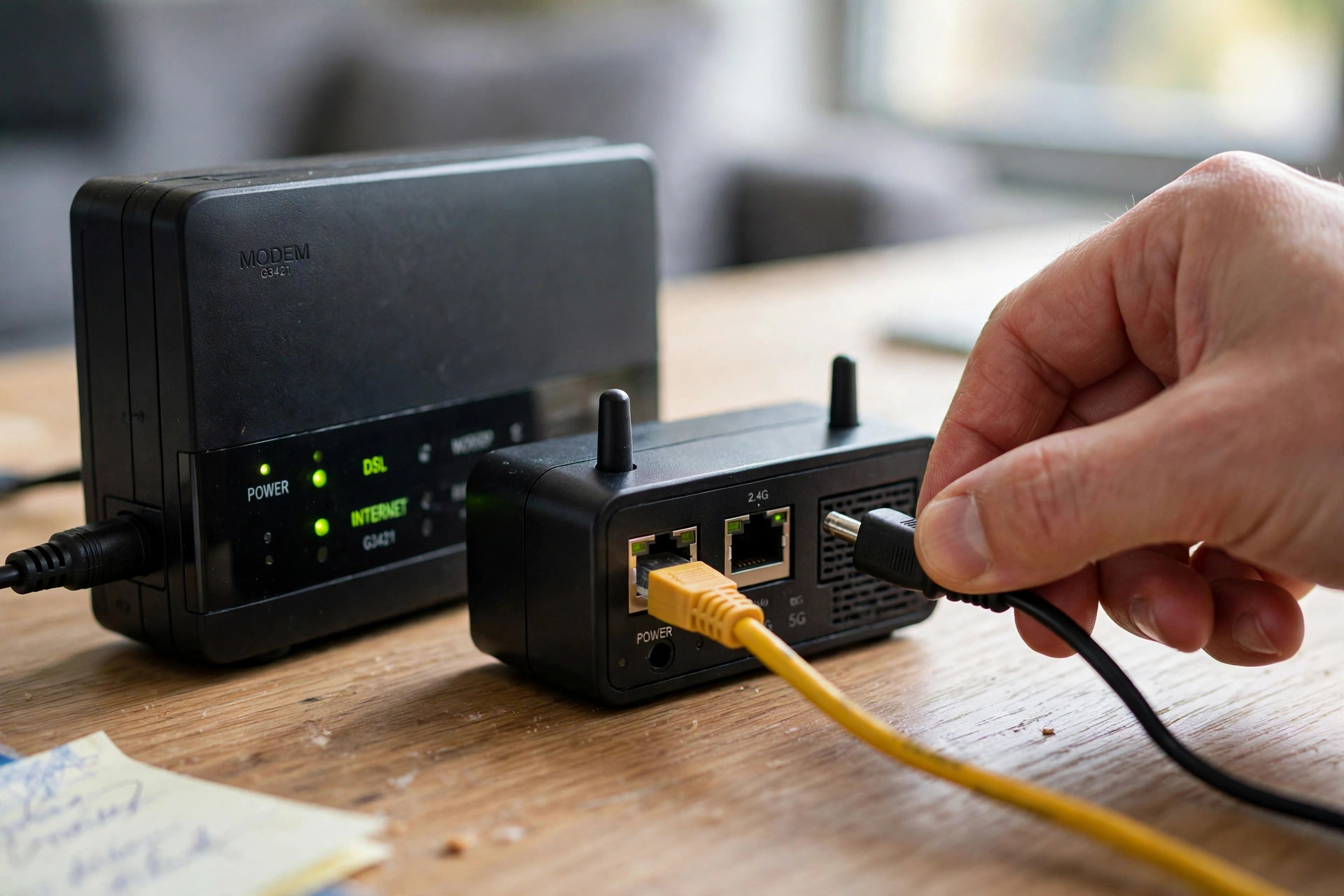
2. Move the Router to a Better Spot
Where your router sits matters more than almost anything else. A router stuffed behind the television, inside a cabinet, or on the floor in a corner is fighting with one hand tied behind its back. Walls, metal objects, fish tanks, and even a microwave all weaken the signal before it reaches you.
The ideal spot is out in the open, roughly in the middle of your home, on a shelf at about waist or chest height. It does not need to be beautiful — it just needs air around it. If your internet cable only reaches one corner of the house, a longer cable is a cheap fix that pays off every single day.
A friend kept his router in a closed TV cabinet and had dead zones in the bedroom. Moving it to a hallway bookshelf, about three metres away, fixed the bedroom completely — nothing bought, nothing upgraded.

3. Use the Right Band for Each Device
Most modern routers broadcast two networks: 2.4 GHz and 5 GHz. They are not two internet connections — they are two lanes on the same road, and picking the wrong lane slows you down.
The 2.4 GHz band travels further and passes through walls better, but it is slower and more crowded, since neighbours, baby monitors, and even microwaves share it. The 5 GHz band is much faster but does not reach as far. So use 5 GHz for devices near the router that need speed, like the TV you stream on or the laptop you work from, and 2.4 GHz for things further away or that barely need speed, like a smart bulb or a doorbell camera.
If your router shows one network name for both bands, its “band steering” setting usually moves each device to the right band on its own. If trouble continues, splitting the bands into separate names gives you manual control.
4. Update the Firmware and Change the Channel
Router software, called firmware, gets security fixes and performance improvements just like your phone does. Yet most people never update it, because the option is buried in the router’s settings page. Log in to your router — the address and password are usually printed on a sticker underneath it — and check for a firmware update. Install it, then restart the router again.
While you are there, check the Wi-Fi channel. In a block of flats, a dozen routers on the same channel is like a dozen people talking at once. A free Wi-Fi analyser app shows the quietest channels nearby. On 2.4 GHz, only channels 1, 6, and 11 do not overlap, so pick the emptiest of those. On 5 GHz, the router’s “auto” setting usually copes fine.
5. Count Your Devices — and Give Priority to What Matters
A home today can easily have twenty or thirty connected things: phones, laptops, a TV, a game console, speakers, cameras, a printer, a fridge. Most of them sit quietly, but a few — a cloud backup, a game update, a 4K stream — can swallow the whole connection without you noticing.
Open your router’s app and look at the connected devices; remove anything you no longer recognise. Then turn on Quality of Service (QoS) if offered: it tells the router that video calls and streaming matter more than background downloads, so a game update no longer freezes your work meeting.
For the one device that must never stutter — a work laptop, a gaming PC, a TV that streams every evening — consider a wired connection. A simple ethernet cable, or a powerline adapter that carries the signal through your home’s electrical wiring, gives that device a stable connection and takes pressure off the Wi-Fi for everyone else.
6. When It Is Time to Call Your Provider or Upgrade
If you have done everything above and the wired speed test is still far below what you pay for, the problem is upstream. Call your provider, tell them the wired number, and ask them to check the line. Sometimes the fix is on their side and costs you nothing.
Consider an upgrade only in two cases. First, if your plan itself is slow — a 10 Mbps plan will never stream smoothly on three screens at once, however good the router is. Second, if your home is large or has thick walls, a mesh system (small units around the house instead of one router) can genuinely help — but buy it because you measured a real dead zone, not because an advert promised magic.
If you recently worked on making an old machine run better, you will recognise the pattern: the same habit of clearing clutter and checking the basics first also helps when you speed up a slow laptop.
Your 15-Minute Wi-Fi Checklist
- Run a wired speed test, then a Wi-Fi test, and compare.
- Restart the router properly: unplug, wait 30 seconds, plug back in.
- Move the router into the open, near the middle of your home.
- Put fast, nearby devices on 5 GHz and distant, simple devices on 2.4 GHz.
- Update the firmware and pick a quieter channel.
- Remove forgotten devices and turn on QoS for calls and streaming.
Work through that list once to fix slow Wi-Fi, and most homes see a real difference the same day.
Frequently Asked Questions
Does a faster plan always fix slow Wi-Fi?
No. A faster plan raises the ceiling, but if the signal is weak in your bedroom, you will still only get a fraction of it there. Fix slow Wi-Fi first, then decide whether the plan itself needs upgrading.
How often should I restart my router?
Once a week is plenty for most homes. If you notice speeds dropping every few days, a weekly automatic restart is a good permanent habit.
Will a Wi-Fi extender help?
Sometimes, but an extender that is too far from the router just repeats a weak signal. Place it halfway between the router and the dead zone, and consider a mesh system instead if your home is large.
Final Thoughts
Slow Wi-Fi feels like a mystery, but to fix slow Wi-Fi, start with the basics. In most homes it comes down to a tired router, a bad spot, a crowded channel, or too many devices fighting at once — and every one of those has a free fix. Try the steps in order, measure before and after, and keep the checklist handy.
If this practical, no-jargon approach helped, you may also enjoy our guide to organizing phone photos in 20 minutes, or our evening routine for better sleep.
To fix slow Wi-Fi for good, repeat the checklist once a month, keep your router in the open, and check for new devices after guests leave. Small, regular habits like these keep speeds steady without any extra cost.