
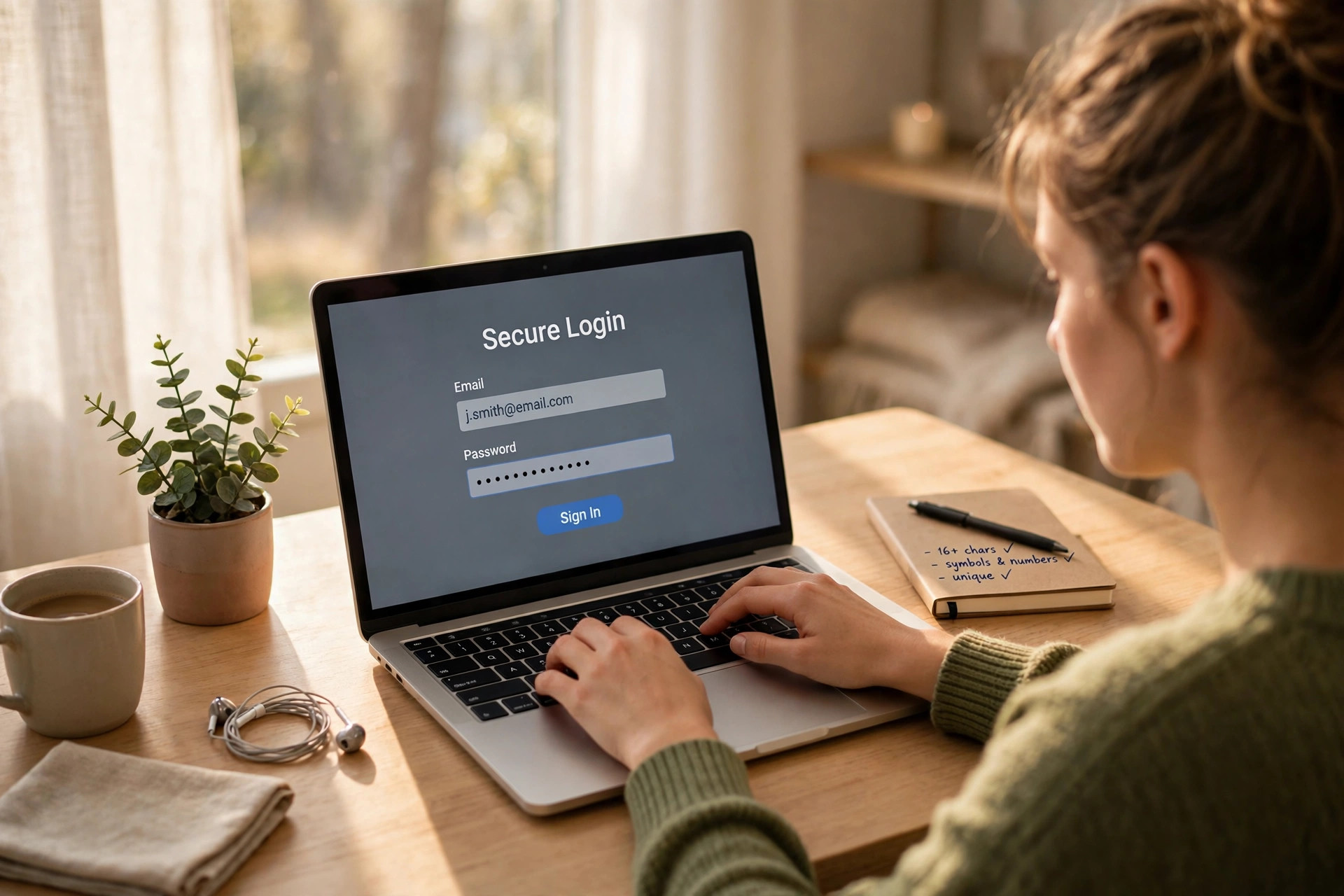
Here is a confession most of us could make: our passwords are terrible. We use the same one everywhere, we pick our dog’s name with a number on the end, and we tell ourselves we will fix it later. Then one day a website gets breached, and that one lazy password suddenly opens half our digital life. That is why learning to create a strong password matters.
The usual advice does not help much. “Use a long, random string of characters” sounds great until you have to type it on your phone at midnight. The good news is that you can create a strong password that is both hard to crack and easy to remember — if you stop trying to memorize gibberish and start using a method instead.
1. Forget Clever Tricks — Length Beats Complexity
For years, everyone was told to swap letters for symbols: “password” becomes “p@ssw0rd!” and somehow that counts as secure. It does not, really. Hackers know all those swaps, and a short password with a few symbols is still a short password.
What actually stops a guessing attack is length. A password of 16 or more characters takes far longer to crack than an 8-character one, even if the longer one is made of ordinary words. So the first rule when you create a strong password is simple: go long first, worry about symbols second.
That does not mean you should type out a whole sentence every time you log in. It means you should pick a method that gives you length without pain — and the best one is the passphrase.
2. Build a Passphrase From Something Only You Know
A passphrase is just several words strung together, and it is the easiest way to create a strong password you will actually remember. Pick four or five words that mean something to you but would look random to anyone else. Not a famous quote, not a song lyric, and definitely not your address — something personal and slightly odd.
For example, someone who loves cooking might use “purple-oven-dancing-tomato-rain.” It is 30 characters long, it has no obvious pattern, and yet the person who made it can picture it instantly. That picture is the secret: a passphrase works because your brain remembers images and stories far better than it remembers random letters.
Add one twist of your own to make it yours. Capitalize one word, put a number somewhere in the middle, or use a separator like a hyphen or an underscore between the words. One small twist is enough — you do not need to turn the whole thing into a puzzle.
One warning: never reuse the same passphrase twice. A brilliant passphrase used on twenty sites is only as safe as the weakest of those sites. That brings us to the tool that solves the reuse problem for good.
3. Let a Password Manager Do the Heavy Lifting
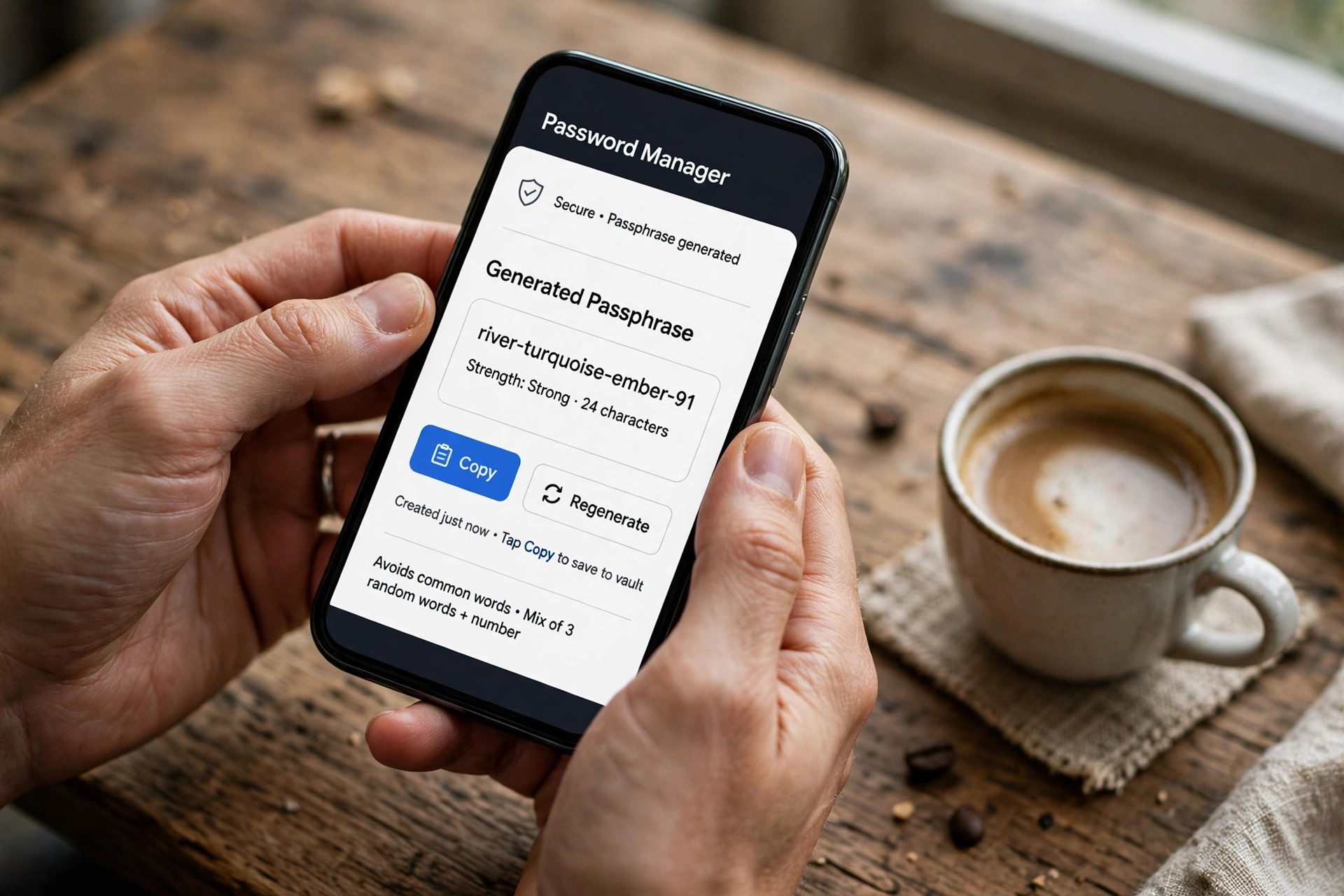
Honestly, the single best thing you can do for your online security is to start using a password manager. It is an app that stores all your passwords behind one master password, and it can generate long, random passwords for every site you use. You remember one good passphrase — the master password — and the manager remembers the rest.
This changes the whole game. Instead of juggling twenty passwords in your head, you have twenty unique, random passwords that you never even need to see. When you log in, the manager fills the password in for you. Many browsers and phones already have one built in, and there are good free options too, so there is no real excuse left not to use one.
Setting it up takes about half an hour, and it is worth doing on a quiet evening rather than in a rush. Start with your most important accounts — email first, then your bank, then social media — and change each one to a fresh, manager-generated password. Your email matters most of all: if someone gets into your email, they can reset almost everything else. Guard it like a front door key.
If you already use free AI tools for other jobs, you may be tempted to ask a chatbot to invent passwords for you. Do not. A password you got from a chatbot is not private, and it is not random in the way you need. Use a proper password manager, or make your own passphrase by hand.
4. Turn On Two-Factor Authentication
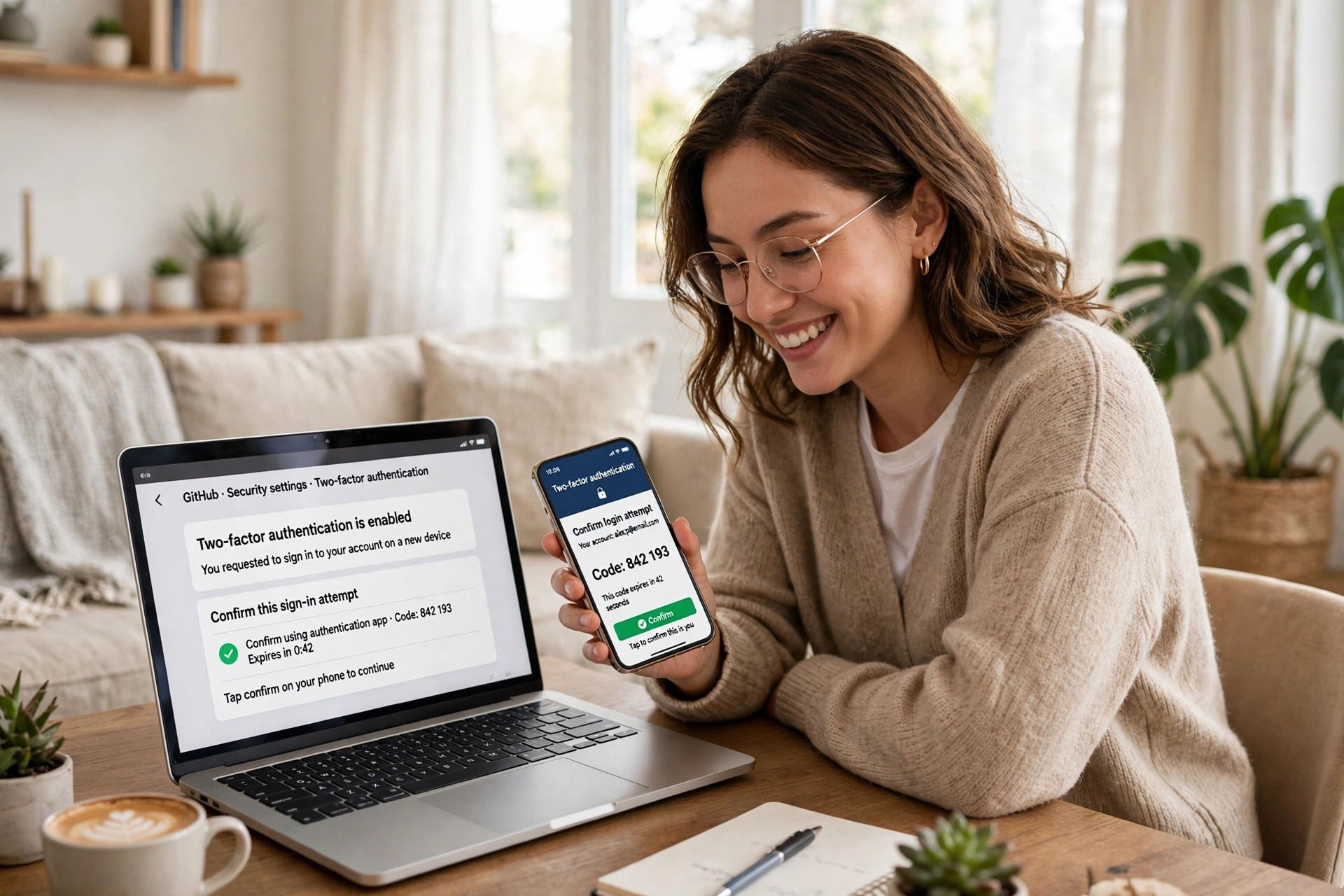
Even a strong password can be stolen. Maybe a site gets breached, maybe you fall for a convincing fake login page, maybe someone looks over your shoulder. Two-factor authentication — often called 2FA — is the safety net for all of those cases.
With 2FA turned on, logging in needs two things: your password, and a second check, usually a code from an app on your phone or a text message. So even if a thief has your password, they still cannot get in without your phone. It adds about ten seconds to each login, and it blocks the vast majority of account takeovers.
Turn it on first for your email, your bank, and your main social media accounts. An authenticator app is safer than text messages, because texts can be intercepted, but either is far better than nothing. And when the site offers you backup codes, save them somewhere safe — printed on paper, in a drawer — because they are your way back in if you ever lose your phone.
Think of it like a morning routine for your accounts: a small check, done every time, that prevents a whole class of problems before they start.
5. Break These Five Bad Habits
Most password trouble comes from a handful of habits that feel harmless. Check yourself against this list:
First, stop reusing passwords. If one site leaks, every account sharing that password is exposed. Second, stop using personal details — birthdays, pet names, your favourite team — because that information is often public, or easy to guess from social media. Third, stop writing passwords on sticky notes on your monitor; a password manager is the proper version of that note. Fourth, stop sharing passwords over chat or email, even with people you trust. Fifth, stop ignoring breach alerts: if a service tells you your password was exposed, change it that day, not “later.”
None of these require skill or money. They just require deciding, once, that your accounts are worth ten minutes of care.
6. What to Do If a Password Leaks
It happens to careful people too, so do not panic — just act quickly. Change the password on the affected site first, then on any other site where you used the same one. If the account is your email, change that password immediately and check that no forwarding rule or unfamiliar device has been added. Turn on two-factor authentication if it was off. And if the leaked password was also your bank password, call your bank and tell them. Use your password manager to create a strong password for each replacement.
Afterwards, take ten minutes to check your other important accounts. A breach is a good reminder to finally set up that password manager, if you have not yet — and it is a much better time to do it than after something worse happens.
Your Password Checklist: How to Create a Strong Password
- Create one strong master passphrase of four or five personal, slightly odd words.
- Install a password manager and let it generate unique passwords for every site.
- Change your email password first, then your bank and social media.
- Turn on two-factor authentication for your most important accounts.
- Save your backup codes somewhere safe, off your phone.
- Never reuse a password, and change any password the moment a breach is reported.
Work through that list once, and you will have done more for your online safety in one evening than most people manage in years, and you will know how to create a strong password for every account.
Frequently Asked Questions
How long should a strong password be?
Aim for at least 16 characters. A passphrase of four or five words easily reaches that length, which is why it is such a practical way to create a strong password without memorizing random characters.
Is it safe to store passwords in a password manager?
Yes — far safer than reusing passwords or writing them down. A good password manager encrypts your passwords, and the company behind it cannot read them. Just make your master password long and unique, and turn on two-factor authentication for the manager itself.
Should I change my passwords regularly?
Not on a schedule, no. Changing a good, unique password every month just leads to weaker passwords. Change a password when there is a reason: a breach, a suspicious login, or if you shared it with someone.
What if I forget my master password?
That is why backup and recovery options matter. Most managers offer a recovery key or an emergency contact. Set those up when you first install the manager, and keep the recovery key somewhere safe and offline.
Final Thoughts
To create a strong password you can actually remember, stop fighting your memory and start working with it. A long passphrase you can picture, a password manager that handles the rest, and two-factor authentication as a safety net — that combination is simple, it is free, and it protects you better than any clever symbol swap ever will.
If you found this practical, no-jargon approach helpful, you may also like our guide to organizing your phone photos in 20 minutes — another small job that feels much better once it is done.